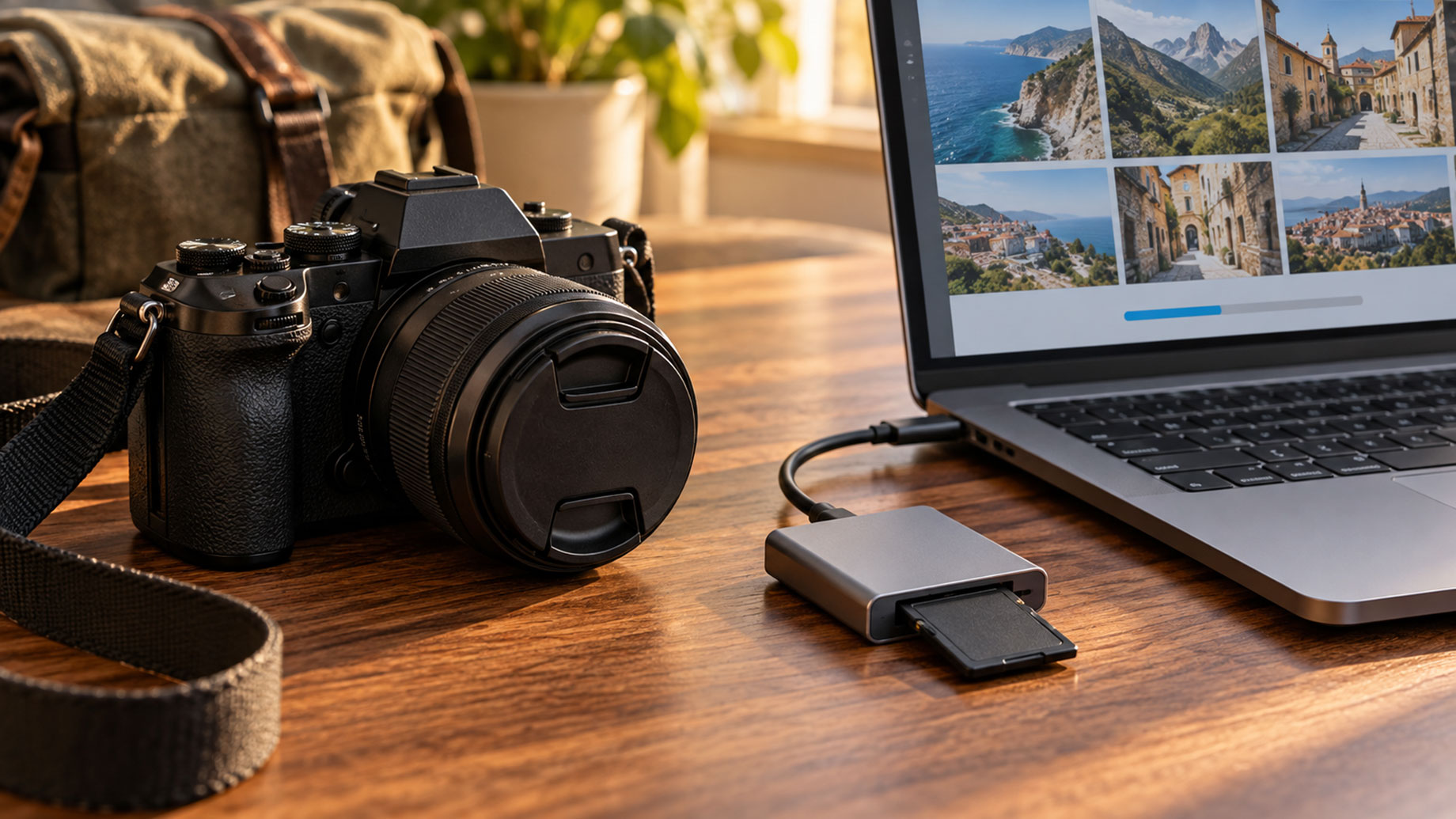
The trip was great. Then you got home, put the SD card in your laptop, and half the photos weren’t there. Maybe the card shows an error. Maybe you deleted the wrong folder by mistake.
Don’t panic yet. You can often recover deleted photos from a camera, even after a format. The camera doesn’t erase the picture right away. It just marks that space as empty. Your photo stays on the card until something new is saved over it.
So the real goal is simple: get the files off before they get overwritten. Below, we’ll cover what to do first, the methods that work, and how to avoid this on your next trip.
Why Photos Go Missing from a Camera
Memory cards take a beating on trips. You swap them fast, shoot in heat or rain, and charge batteries wherever you find a plug. Most lost photos come from one of these:
- You pressed “Delete All” when you meant to delete one shot
- You formatted the card to free up space and forgot some photos weren’t copied yet
- The camera says “Card Error” because you pulled the card out while it was still saving
- The battery died in the middle of a write
- You used the same card in your drone, GoPro, and camera, and the file system got messed up
- The card got wet, sandy, or bent
Software can fix most of these. A broken or water-damaged card is a different case, and we’ll get to that later.
Do This First: Stop Using the Card
This part matters more than which tool you pick. Each new photo you take can wipe out an old one for good.
- Stop shooting. Turn the camera off and take the card out.
- Don’t format the card, even if the camera or computer asks. Just click “Cancel.”
- Skip repair tools like CHKDSK for now. They change the card’s file system and can make recovery harder.
- Slide the small lock switch on the SD card to “Lock” if it has one.
- Use a card reader. Most cameras won’t show up as a normal drive over a USB cable, so recovery tools can’t scan them well.
Does your camera save photos to built-in memory instead? Same rule. Don’t use it until you’ve tried to recover photos from the camera.
Method 1: Look for Copies You Forgot About
Before you scan anything, check whether the photos already exist somewhere else. People find them this way more often than you’d think.
- Open your camera’s phone app. Canon Camera Connect, Nikon SnapBridge, Sony Creators’ App, and Fujifilm XApp can copy photos to your phone on their own.
- Check Google Photos, iCloud, or Lightroom. If your phone synced those shots, they’re likely in the cloud.
- Look in Trash or Recently Deleted on your phone. Deleted photos stay there for a while before they’re gone.
- Check the second card slot. If your camera has two and you set one to “Backup,” your photos may still be there.
- Did you copy anything to a laptop or tablet during the trip? Look in Pictures and Downloads.
- Ask your travel buddies. You may have sent them photos on WhatsApp or AirDrop.
No luck? Time to try recovery software.
Method 2: Use Photo Recovery Software
For most people, this is the method that gets the photos back. Recovery software reads the card bit by bit and looks for the start and end of each image file. That’s how it finds photos the camera already “forgot.”
Stellar Photo Recovery and PhotoRec are two of the best tools for photo recovery.
PhotoRec is completely free but a bit hard to use if you’re not tech-savvy. Stellar Photo Recovery is easy to use and offers limited free recovery. It works on Windows and Mac, and it covers what most travelers shoot:
- JPEGs and RAW files from Canon (CR2, CR3), Nikon (NEF), Sony (ARW), Fujifilm (RAF), Olympus (ORF), and DNG
- Videos like MP4, MOV, and MTS
- SD, microSD, CF, CFast, and XQD cards
- A preview, so you can see your photos before saving them
You can test it with the free version, which recovers up to 10 files (100 MB each). For a full trip, you’ll need the paid version.
How to recover photos from a digital camera card using software
- Put the card in a card reader and plug it into your computer.
- Install the software on your computer. Never install it on the card.
- Pick the card and choose what to look for: photos, videos, or both.
- Start the scan. If your photos don’t show up, try Deep Scan. It’s slower but finds more.
- Preview what it found and select the ones you want.
- Save them to your computer or an external drive. Don’t save them back to the same card.
Keep in mind, no software can bring back a photo that’s already been overwritten. That’s why you stop shooting right away.
What If You Formatted the Card or It Shows an Error?
A formatted card isn’t always a lost cause. Most cameras do a quick format. It clears the list of files but leaves the photos on the card. A Deep Scan can usually find them.
Your chances are lower if:
- You used “Low level format” on a camera that offers it, like some Canon models. This wipes the whole card.
- You did a full format (not quick) in Windows. That writes zeros over everything.
- You kept shooting after the format.
If the card shows “Card Error” or your computer says it needs formatting, say no. Run recovery first. Once your photos are safe, format the card in your camera. If the error keeps coming back, buy a new card.
When to Call a Professional Recovery Service
Recovery software needs your computer to see the card. If it can’t, a data recovery lab is the next step. Reach out to one if:
- The card is cracked, bent, burned, or the gold contacts are broken
- It fell in the sea or got packed with sand
- No computer or card reader can detect it
- Every scan freezes or crashes halfway
Labs can pull data straight from the memory chip using special tools. It costs a lot more than software, often a few hundred dollars. Ask for a quote first, since many labs check the card for free.
One more thing: don’t try to fix the card yourself. Bending it straight or scraping the contacts can ruin photos that a lab could have saved.
How to Protect Photos on Your Next Trip
A few easy habits can save you from all of this next time:
- Pack a few smaller cards, not one giant one. If a card dies, you lose one day instead of the whole trip.
- Back up every night. Copy the day’s photos to a laptop, a small SSD, or your phone.
- If your camera has two slots, set the second one to save a backup copy.
- Only format the card in your camera, and only after you’ve checked your backup.
- Wait for the card light to stop blinking, then turn the camera off before you take the card out.
- Keep a spare battery charged so the camera never dies while saving.
- Stick to known brands like SanDisk, Lexar, Kingston, or Samsung, and buy from trusted stores. Fake cards are everywhere online.
- Keep cards in a hard case, away from sand and water.
Wrapping Up
Most of the time, your trip photos aren’t gone. They’re still on the card, waiting to be found. Stop using the card, check your phone and cloud backups, then run a recovery scan. If the card is physically damaged, take it to a lab.
And next time? Back up your photos every night. It takes five minutes.
FAQs
Can I recover deleted photos from a camera without a computer?
Not really. Most cameras don’t have an undo button or a trash folder. You’ll need a computer, a card reader, and recovery software.
Can I recover photos from a camera’s internal memory?
Sometimes. Plug the camera into your computer. If it shows up as a drive, recovery software can scan it.
How long do deleted photos stay on an SD card?
Until something new is saved over them. That might be months if the card sits in a drawer, or seconds if you keep shooting.