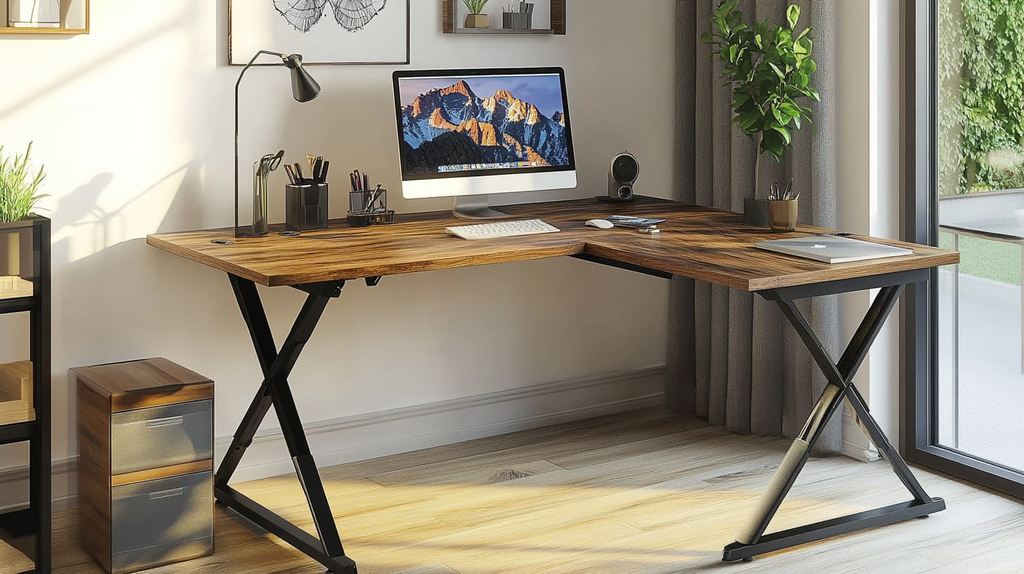
A poor fit with an L-shaped desk rarely shows up in photos. It shows up after a week of awkward chair turns and stretched reaches, because a desk needs to match your body and your daily work as well as your room.
Myth 1: L-shaped desks only belong in corners
Many product photos show L-shaped desks tucked into a corner, so buyers assume that’s the only layout that works. That assumption can cause trouble before you’ve even chosen a desk.
A corner layout can be great when two walls are free and you want wraparound surface on both sides. But the same desk can also work as a peninsula against a flat wall, with one leg as the main work surface and the other leg as a side return.
The difference matters for chair placement and sight lines. In a true corner you face into the walls with storage and screens close on both sides. In a peninsula you sit along the long edge with open space behind you, which changes where monitors feel comfortable and where a second person can sit.
Tape out both options on the floor. Check room length and width plus door swing paths, window placement, heat vents, and outlet locations. Leave enough walkway width so you don’t squeeze past the return each time you stand.
Myth 2: bigger is always better
It’s easy to think extra surface can’t hurt. When buying furniture for a home office, that instinct often leads to an oversized L-shape that dominates the room and makes everyday tasks harder.
Reach is easy to overlook. Your keyboard and mouse need to stay within a comfortable arc in front of you, and daily tools should live nearby. A deep top or long return can still work if you keep frequent-use items close; problems arise when you spread them out simply because the space is available.
Put a screen and a few frequently used items into your taped-out plan. Can you place the screen where text is easy to read and keep the phone close without blocking the keyboard? Judge the usable arrangement, not just the amount of surface available.
Think in zones instead of square footage. Your primary zone is the keyboard and main screen directly in front of you. Your secondary zone is the return for papers and notebooks. If you can’t pivot and reach the second space without standing, much of that area may go unused while taking up valuable floor space.
Extra room on top can become a nuisance.
Sit at a table and note where your hands land without leaning. Compare that reach to the depths you’re considering. A compact footprint that keeps everything close may be more comfortable day to day than a huge L-shape.
Myth 3: left and right returns are interchangeable
Orientation sounds like a small detail until the desk arrives backward. Left return and right return are not the same, and swapping them often means twisting all day or blocking circulation.
Check the supplier’s orientation diagram from the seated user’s viewpoint. Left and right returns are generally described from that position, not from the visitor’s side of the desk. Confirm the exact configuration on your order rather than interpreting a room photo. Daily tasks decide which side feels natural for writing and phone work, so test the pivot in your chair.
Orientation also decides whether the desk fits the room. A return on the wrong side can jut across a doorway or crowd a window and chair path. It can also put drawers where your knees need to be, which cuts legroom and forces you to sit sideways.
When comparing an L shaped desk, check which dimensions and storage options belong to your selected configuration. The linked model offers multiple sizes and drawer choices, along with laminate construction, PVC edge banding, grommets, and leveling glides. Request a dimensioned drawing showing the return and drawer placement before ordering. Use it to confirm the footprint and remaining knee space rather than inferring either from a product photo.
Myth 4: you have to sit in the corner
Some guides tell you to plant your chair at the angled joint and face straight into the corner. That spot can work when the desk is designed for it, with a curved front and enough knee space to pull in close. It isn’t required, and for many flat-joint models it isn’t the most comfortable choice.
You may find it easier to sit at one leg. Put your keyboard directly in front of you on the main surface and square your shoulders to that edge. Keep your main screen centered on that line, with the return available for papers and a laptop.
Corner joints often sit farther from your eyes than the front edge does. When you center on the joint, you may turn your neck slightly to keep text in view, depending on where the screen sits. That small turn might feel fine for ten minutes but become tiring after four hours.
Curved fronts offer a different arrangement. A gentle radius can let you sit closer without the edge digging into your forearms, making it easier to find a comfortable viewing distance. A sharp joint can leave you farther back, with a dead triangle behind the screens where cables pile up.
Try both seats with real work. You’ll get a better sense of which spot keeps your keyboard and screen in line without extra twisting.
Myth 5: height is the only number that matters
Desk height gets all the attention because it’s easy to measure. It’s only one part of fit, and on an L-shape the other numbers often cause more trouble.
Depth decides how far your screen sits from your eyes. A very deep top can push the monitor back unless you pull the screen forward or use a monitor arm. A useful starting point is a keyboard near seated elbow height and a screen roughly an arm’s length away. The top of the screen should sit at or slightly below eye level. If the surface won’t let you find that arrangement, height alone won’t solve the problem.
Under-desk space matters just as much. Check knee clearance on both legs and look at edge thickness where your wrists rest. A thick edge paired with a high tray can lift your hands above a neutral spot, while a low tray can steal knee room on a narrow return.
Chair clearance is easy to overlook. Measure armrest width and seat height, then add room to swivel from the main leg to the return without clipping drawers or panels. If you use a sit-stand base, test clearance in both sit and stand positions, because cables and trays move when the desk moves.
Do a quick sit test. Your thighs shouldn’t touch the underside. Your wrists should stay fairly straight and you should reach the return with a small pivot.
Myth 6: extra surface automatically fixes workflow
An L-shape gives you more area than a straight desk, so it’s tempting to assume workflow improves on its own. Without a plan for using it, though, that surface can become storage for clutter.
Start by naming your zones. The main leg should hold the keyboard and main screen in a straight line so you aren’t angled all day. The return works best for reviewing papers and taking calls. Giving each area a job helps you move between them without constantly rearranging things.
Monitor placement deserves its own decision. Putting the main screen at the joint can work in some curved designs that pull you in close with room for your knees. In many flat-joint models that same spot leaves the screen a bit farther back and slightly off center, so you rotate to read.
Cable control helps keep that layout usable. Look for grommet holes and a tray or pass-through path that can handle power and video for two screens. If you plan to use monitor arms, check that the top can accept clamps and that the rated load covers your screens and mounts.
Extra surface gives you space to work with. Workflow comes from alignment and tidy power, not from inches alone.
Myth 7: all L-shaped desks are built the same
Two desks can share the same footprint and feel nothing alike after six months. Build quality affects whether an L-shape stays flat and tight or starts to sag and wobble.
Start by separating the surface finish from the underlying structure. Laminate is a surface material; a laminate desk may have a particleboard or MDF core. Neither the finish name nor the core name tells you the complete desk’s load capacity. Ask about thickness, support placement, and the manufacturer’s limits for the assembled configuration.
Look at how the return connects and where legs or panels support the top. Compare those details with where you intend to place heavy equipment. A printer at the end of a return and a monitor arm clamped near a joint create different demands. For mounted screens, confirm both the arm’s compatibility with the desk and the permitted load; a general desktop capacity is not necessarily approval for a concentrated clamp load.
Moving bases need a closer look, too. Height-adjustable L-shapes have more parts and need room for legs to travel plus slack for cables. That’s fine when the frame is rated for your top size and weight. It’s a poor match when a light frame carries a heavy top and full equipment. Ask for thickness, core material, support layout, and load limits in writing.
What to check before you order
Run through this quick check to catch common problems before placing an order.
Measure the room first. Note length and width, door swing clearance, window and vent positions, plus outlet spots on baseboards and walls. Keep enough walkway to pull back and stand without hitting the return.
Check the seated measurements next. Note sit height, armrest width, swivel radius in sit and stand postures, and knee space under both legs. Make sure the keyboard can sit near elbow height and the screen can sit at a relaxed distance with cables routed cleanly.
Look for adaptability. Pre-drilled holes, adjustable feet, grommet placement, and clearance for a keyboard tray help the desk adjust to your space.
Buy where specs and returns are clear. A retailer that lists full dimensions and materials and offers a fair exchange process gives you more room to put things right if the desk doesn’t work out.
Fit is quiet. When the desk matches your reach and your floor plan, you can get on with work without constantly adjusting around it.